


Motorola by Hubble Connected
3.7531.00 Reviews
App Specs
- Version
- 1.01.42
- Updated On
- License
- Free
- Downloads
- 100,000+
- Developer
- Hubble Connected
- Categories
- Parenting
- Platform
- Android
Screenshots
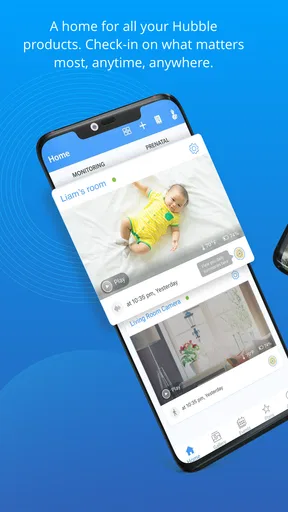
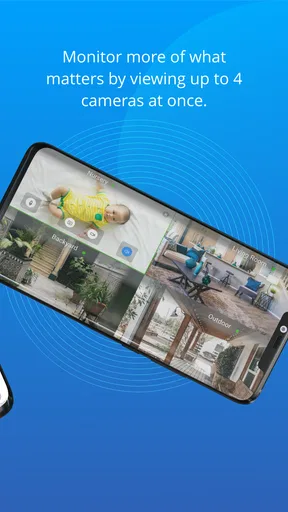
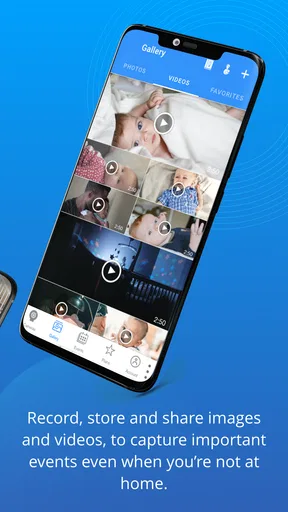
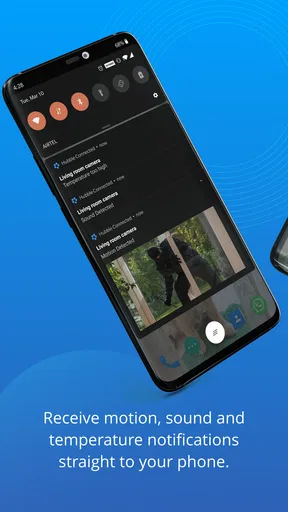
 Analysis by AppCompare
When I first opened Motorola by Hubble Connected, I wanted one clear result: to check a camera from my phone without turning setup into a project. That is the right way to approach this parenting app. Its usefulness depends on having a compatible Motorola device, a working connection, and a reason to check in; it is not a standalone camera or a substitute for choosing the right monitor. For a first-time user, the reassuring part is that the app is built around connecting to devices rather than asking you to learn a complicated monitoring system.
The app is developed by Hubble Connected and is free to install, with in-app purchases ranging from $5.99 to $149.00 per item. It is rated for Everyone, has a 3.7 average from around 2.6 thousand ratings, and has been installed over 100 thousand times. Those figures give a sense of its reach, but I would not treat the rating as a promise that every camera setup will behave the same way: your experience will depend in part on the device and the reliability of your home network.
Getting Started
First things first, downloading and setting up Motorola by Hubble Connected is a breeze. I hopped onto the App Store (or Google Play for you Android folks) and found it in a jiffy. The installation process was quick, and before I knew it, I was ready to dive in.
Once you open the app, it guides you through a simple setup process. If you're like me and sometimes get lost in the tech weeds, don't worry. The app holds your hand through each step, ensuring you're connected to your devices without any hiccups. I was impressed by how intuitive the user interface is. It’s as if they knew exactly what I needed before I even asked.
Before You Begin: Match the App to Your Device
The most useful preparation is checking that the Motorola camera or monitor you own is intended to work with this app. “Motorola” covers a range of products, and installing a phone app alone will not make an unrelated camera appear in it. I would identify the model from the device or its packaging before starting, then keep the camera nearby while following the in-app setup. That small check can save the frustrating loop of trying to pair hardware that belongs to a different system.
On Android, the app supports devices running version 5.0 or later, and the current version is 1.01.42. If the app is already on your phone, checking that it is up to date is a sensible first step before troubleshooting a connection. I would also complete the initial pairing where the camera is located, rather than assuming that a device will join successfully from a distant room or on a weak wireless signal.
Getting to a Useful First Check
For a first success, aim for one simple outcome: open the app, connect the intended device, and see its live view while you are still at home. That confirms more than a successful installation does. It gives you a chance to check the camera’s placement, make sure the image is useful from the angle you chose, and learn where the live view and alerts appear before you depend on them while away.
Worth Reading Before You Choose

EA SPORTS FC Mobile 26 Is a Bigger Football Game, but It Takes Time

Flipboard Shows What News Apps Must Do Beyond the Feed

Switching to Android Auto Means Rethinking Your Driving Routine

Google Calendar Makes a Crowded Week Easier to Manage

Ludo King Makes the Most of the Minutes Between Plans

Baby Panda World Brings Quick Play to Modern Phones, but Its Game Library Feels Busy
A practical test is to leave the room briefly and check the view from another part of the home. If you plan to use sound or motion alerts, test those in a calm, controlled way and adjust the notification settings so they are helpful rather than distracting. I would not rely on a single successful alert as proof that every future event will be caught; treat alerts as prompts to check the camera, not as a guarantee of constant supervision.
Features That Stand Out
Now, let's talk features. The app supports a range of Motorola devices, from baby monitors to security cameras. One of my favorite features is the real-time video streaming. I could check in on my home anytime, anywhere. It's like having eyes in the back of your head, only more tech-savvy.
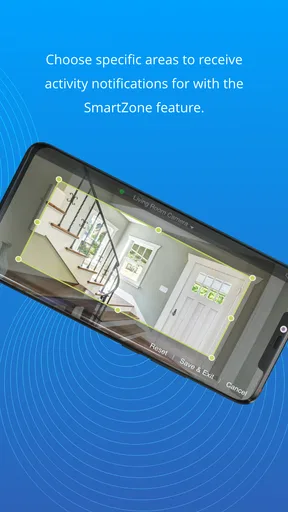
Another cool feature is the motion and sound detection. The app sends alerts straight to your phone if it detects anything unusual. I tested this out, and every time my cat decided to make a ruckus, I received an alert, which I could then review on video. It’s reassuring to know you won’t miss anything important.
Using Alerts Without Letting Them Take Over
Motion and sound notifications are most useful when you decide what deserves your attention. A room with a pet, television, or frequent household movement may create more activity than a quiet nursery, so I would begin with the alerts you actually need and fine-tune them after observing a normal day. This is a better approach than leaving every notification enabled and eventually ignoring the phone because it keeps interrupting you.
For a parent, an alert can be a useful nudge to open the live view, but it should not replace listening and checking in person when something seems wrong. For home monitoring, the same distinction matters: a camera notification helps you investigate, while the camera’s position and connection determine what you can actually see. I find that treating alerts as a convenience rather than a safety guarantee leads to more realistic expectations.
Customization and Control
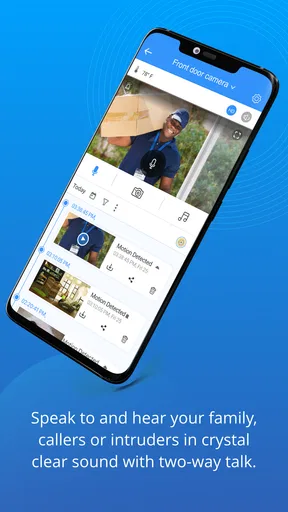
Customization is another strong point for this app. You can adjust settings like camera angles, notification preferences, and even talk through the devices. Yes, you heard me! The two-way communication feature means you can speak directly through your camera. I tested it by saying "Hi" to my dog while at work, and his confused head tilt was priceless.
The app also supports cloud storage, which means you can save your videos and access them whenever you like. It’s perfect for those moments when you need to review past footage. Just don’t forget to check your storage plan to ensure you have enough space for all your recordings.
A Realistic Day-to-Day Routine
Here is the sort of routine where I can see the app earning its place: before leaving home, I check that the camera is aimed at the space I care about and that the live view opens. Later, while running an errand, I use the phone to take a quick look rather than keeping a video stream open continuously. If an alert arrives, I can check the view and decide whether it needs attention. That short, intentional check is more practical than draining the phone by watching a feed for hours.
Two-way talk has a different use from passive monitoring. It can be handy for calling to a pet or speaking into a room, but I would test how the sound comes through while standing near the device before assuming it will be clear at a distance. It is also worth thinking about who else can hear the camera’s speaker. For a baby’s room, a parent may prefer to use the feature selectively rather than speaking through it every time they look in.
Where It Fits Among Monitoring Options
Compared with using a basic baby monitor with a dedicated parent unit, a phone-based app can be more convenient when your phone is already with you and you want to check from outside the home. The trade-off is that the experience relies on the camera, phone, and network being ready when you need them. A dedicated monitor may be the simpler choice for someone who wants a separate screen and does not want monitoring to compete with phone calls, messages, or battery life.
Compared with a general-purpose home camera app, this one makes the most sense when your hardware is part of the supported Motorola range and you want its monitoring controls in one place. If you have cameras from several unrelated brands, separate apps may be unavoidable, and a broader smart-home system could suit you better. I would choose based on the devices already in your home, not on the assumption that one app will manage every camera you own.
A Few Observations
While I thoroughly enjoyed using Motorola by Hubble Connected, there were a couple of minor bumps. Occasionally, the video stream had a slight lag, especially when my internet connection wasn’t at its best. It wasn’t a deal-breaker, but something to keep in mind if your Wi-Fi tends to be finicky.
Another thing I noticed was that the app could be a bit of a battery hog if you're streaming video for extended periods. But then again, streaming video is bound to be a bit demanding on battery life, so just make sure you’re near a charger if you plan on prolonged monitoring.
Costs, Storage, and Everyday Trade-Offs
The app itself costs nothing to install, but optional in-app purchases mean it is worth checking the purchase details before choosing anything. In particular, do not assume that every storage or recording option is included just because you can open the camera feed. If reviewing past clips matters to you, confirm what your chosen device and plan allow before building a routine around saved footage. That way, you can decide whether the extra cost makes sense for your actual use rather than paying for a feature you rarely need.
Battery use is another practical reason to favor short checks over leaving live video running in the background. If you are away for a long stretch, I would make sure the phone has enough charge for the rest of the day and use alerts to decide when a live view is worth opening. That does not remove the need for a stable connection, but it helps keep monitoring from becoming a constant drain on the device you use for everything else.
When I Would Choose Something Else
I would skip this app if you do not own a compatible Motorola device, if you need one interface for a mixed collection of camera brands, or if your home connection makes live video unreliable. It is also not my first recommendation for someone who wants a dedicated monitor screen and prefers not to depend on a smartphone. In those situations, choosing a monitor designed for that workflow or a camera platform that supports your existing equipment is likely to be less frustrating.
For a new parent, the app is best treated as one part of a monitoring setup, not as the whole plan. A camera view can help you check a room, but no phone notification or video feed should be treated as a replacement for appropriate supervision. I would use it to add convenience to a compatible monitor, while keeping the basic care routine independent of whether the app is open or the phone is nearby.
Final Thoughts
Overall, my experience with Motorola by Hubble Connected was overwhelmingly positive. It's a user-friendly app packed with features that make monitoring your home or loved ones as stress-free as possible. Whether you're a parent wanting to keep an eye on your little one or someone who just wants to feel more secure at home, this app is definitely worth checking out.
With its intuitive design and robust functionality, I’d say give it a shot. You’ve got nothing to lose and peace of mind to gain. And isn’t that what we’re all looking for at the end of the day?
My recommendation is to start with a single compatible device, confirm that its live view works from the room where you will use it, and only then decide whether alerts, two-way talk, or saved recordings fit your routine. That gives you a clear first win without turning setup into a bigger commitment than it needs to be. If those basics work reliably, the app can be a convenient way to check in; if they do not, the sensible next step is to review the device and connection rather than expecting the phone app to fix a hardware or network problem.
Pros
- User-friendly interface with intuitive navigation.
- High-quality video streaming and audio clarity.
- Seamless integration with Motorola devices.
- Reliable real-time alerts and notifications.
- Customizable settings for personalized experience.
Cons
- Limited compatibility with non-Motorola devices.
- Subscription required for advanced features.
- Occasional connectivity issues reported.
- Battery drain on prolonged usage.
- User data privacy concerns.
FAQs for Motorola by Hubble Connected
What features does the Motorola by Hubble Connected app offer?
The Motorola by Hubble Connected app offers a range of features including live video streaming, motion and sound alerts, two-way communication, and remote pan, tilt, and zoom control. It supports multiple cameras, allowing users to monitor different locations simultaneously. Additionally, the app stores recordings in the cloud, providing easy access to past footage.
Is the Motorola by Hubble Connected app compatible with all Motorola cameras?
While the app is designed to work with a wide range of Motorola cameras, it's important to check compatibility with your specific model. Most newer models are supported, but older models might have limited functionality. The app’s description on the app store usually lists compatible devices, so ensure your camera is supported before downloading.
Does the Motorola by Hubble Connected app require a subscription?
The app itself is free to download and use for basic functionalities. However, advanced features like extended cloud storage and enhanced video quality may require a subscription. These plans are typically offered on a monthly or yearly basis, providing users the flexibility to choose according to their needs and budget.
How secure is the Motorola by Hubble Connected app?
Security is a top priority for the Motorola by Hubble Connected app. It uses encryption protocols to protect data transmission between the camera and app. Additionally, users can set up two-factor authentication to add an extra layer of security. Regular updates ensure protection against potential vulnerabilities as well.
Can I use the Motorola by Hubble Connected app on multiple devices?
Yes, the app can be installed on multiple devices. This allows different family members or authorized users to access the camera feeds. Each device can be logged into the same account, providing seamless monitoring capabilities, whether you're using a smartphone, tablet, or computer.


